
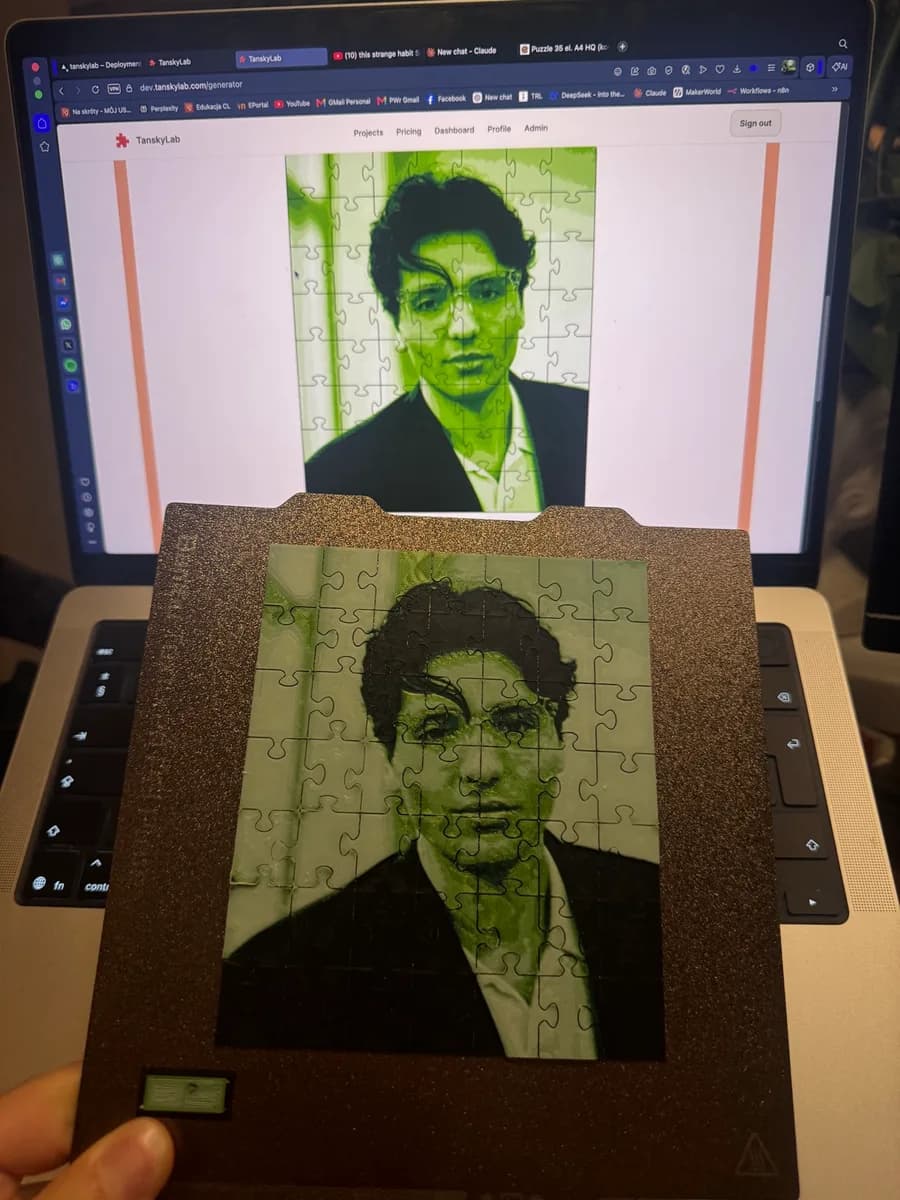
Ask in any 3D printing group how to print a photo in color and the first answer is HueForge. It is a good answer, and it has become so common that many makers assume it is the only one. It isn't. The technique HueForge made popular, stacking thin layers of filament so the colors blend like paint, is now available in several tools, some of them free and some of them in the browser.
So which one should you use? It depends less on the tool than on what you want to hang, give or sell. Here is what HueForge actually does, five alternatives, and a table to pick from.
What HueForge actually does
HueForge is a desktop app for Windows, macOS and Linux. You load an image and a set of filaments, and it builds a flat relief where every layer height maps to a color. Because thin plastic is partly translucent, a light filament printed over a dark one comes out as a blend, so four spools can produce far more than four visible shades. HueForge predicts that blend from each filament's transmission distance (TD), the thickness at which a filament stops letting light through, and tells you at which layers to swap spools.
It is paid software. The official shop sells personal and commercial licenses, as lifetime or annual plans, and in many countries (the shop lists the US, Canada, the EU, the UK and Japan) the personal license comes with a Polymaker filament coupon equal to its price. If you plan to sell your prints, read the license terms first: personal and commercial use are licensed separately.
The alternatives at a glance
Every tool below uses the same basic idea: one image, a few filaments, colors changing at planned layers. They differ in where they run, what file you get and how much they decide for you.
| Tool | Price | Runs in | You get | Best for |
|---|---|---|---|---|
| HueForge | Paid license | Desktop app | Model file + swap list | Detailed art with full control |
| Kromacut | Free, open source | Browser | STL or 3MF + swap list | HueForge-style art without paying |
| Chroma Canvas | Check MakerWorld | MakerWorld (browser) | Print file with color changes | Bambu Lab owners already on MakerWorld |
| Filament Painter | Free | Browser | OBJ + swap list | A quick try, no signup |
| TanskyLab Photo Panel | Free maker | Browser | Ready-to-slice Bambu Studio 3MF | Photo wall art and gifts, few clicks |
| Lithophane generators | Usually free | Browser | STL | Backlit lamps and window art |
Prices and features change, so treat the table as a starting point and check each tool's page before you commit an evening of printing.
1. Kromacut: the free, open-source one
Kromacut is a free, open-source app that runs in the browser. According to its project page it reduces your image to a small palette, shows how each color maps to stacked layers, and lets you change the height and order of every color. A newer automatic mode takes your filament colors and their TD values and calculates the layer stacks with an optical blending model, much like HueForge. It exports STL or 3MF together with plain-text instructions listing the layers where you swap filament.
Choose it if you want HueForge-style control and are happy to tune things yourself.
2. Chroma Canvas: Bambu Lab's own tool on MakerWorld
Chroma Canvas is Bambu Lab's image-to-layered-color tool on MakerWorld, launched as a beta. You upload an image and choose your colors; it calculates the thickness of each colored layer with the filament's translucency in mind and produces a file with the color changes set for Bambu Studio.
It suits Bambu Lab owners who already download models from MakerWorld. Check MakerWorld for its current availability and terms.
3. Filament Painter: a quick browser try
PrintPal's Filament Painter is a free browser tool. Its page says it turns a PNG, JPG or WebP image into an OBJ model with filament swap instructions and needs no signup. It is the fastest way to see whether the technique works for your photo before you invest in anything.
4. TanskyLab Photo Panel: photo wall art in a few clicks
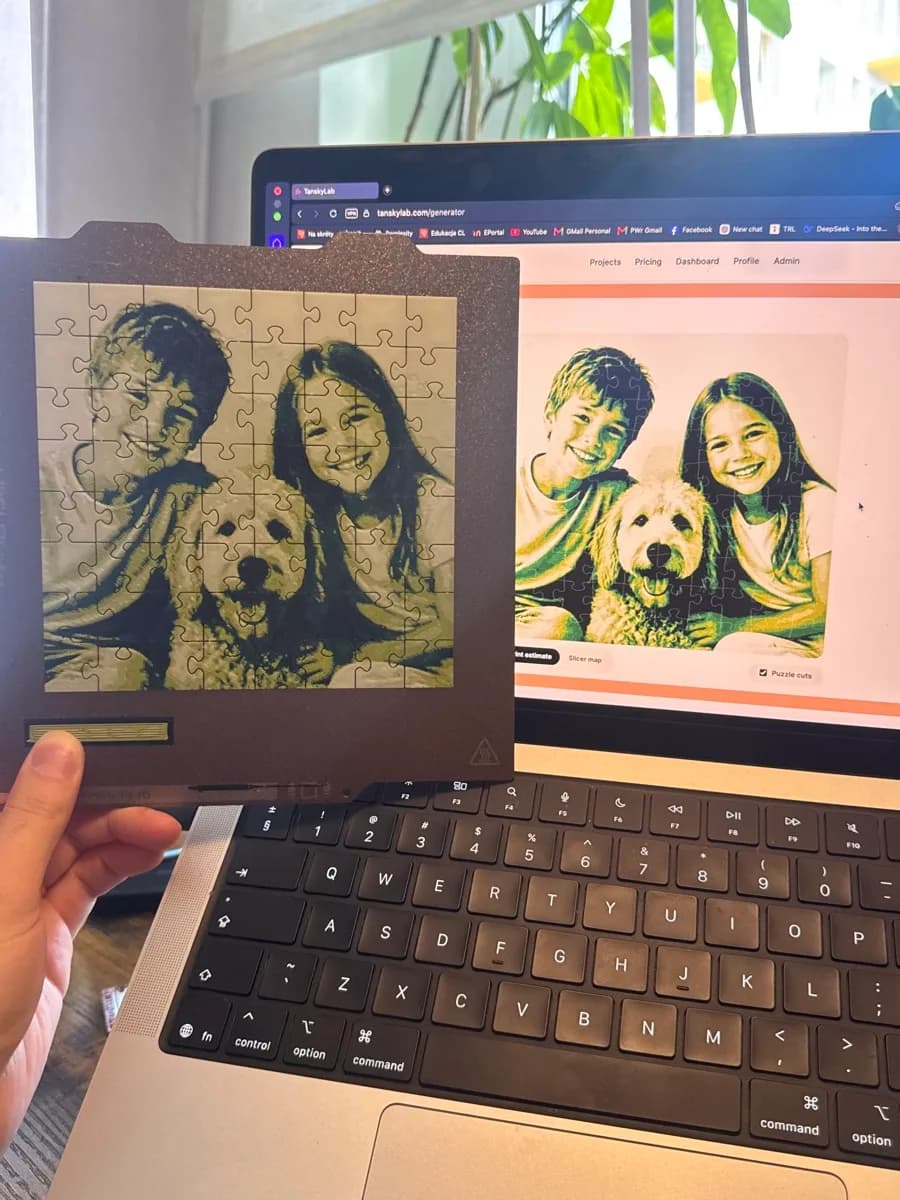
Our own Photo Panel maker is free on every TanskyLab account. It is built for photos rather than artwork: upload a picture, crop it, accept the recommended palette or pick the spools on your shelf, and download a ready-to-slice Bambu Studio 3MF with every color change already in place. The preview takes each filament's translucency into account, and for your own spools you can set how opaque they are, so what you see in the browser is what comes off the plate. Panels bigger than your build plate are split across several plates that join together.
The same photo can also become a jigsaw: the Universal Puzzle generator uses the same color engine and cuts the relief into interlocking pieces, with a frame and a stand if you want one. The free plan includes 2 puzzle generations a month.
5. Lithophane generators: the backlit option
A lithophane is a different kind of photo print: one color, with the image made by changes in thickness, so it only appears when light shines through it. Free online generators turn a photo into a lithophane STL in a minute. It is the right choice for a lamp, a night light or a window, and the wrong one for a shelf or a wall. Our HueForge vs lithophane comparison goes into the details.
How to choose
- You want to make detailed art and enjoy tuning: HueForge, or Kromacut if you would rather not pay.
- You print on a Bambu Lab printer and live on MakerWorld: try Chroma Canvas.
- You want to test the idea on one photo tonight: Filament Painter or the Photo Panel maker.
- You want a photo gift that is ready to slice, or a puzzle to build together: the Photo Panel or the Universal Puzzle.
- The photo will live in a window or a lamp: a lithophane.
None of these needs an AMS. Because each color is a band of layers, the printer pauses at each change and you swap the spool by hand; our guide to printing in several colors without an AMS shows how.